

[ez-toc]
How to Undo Reconciliation in QuickBooks Online: A Step-by-Step Guide
Reconciliation is a critical part of bookkeeping, ensuring that your financial records match your bank statements. However, there may be instances where you need to undo a reconciliation in QuickBooks Online. Whether it’s due to an error or a change in your financial data, knowing how to undo a reconciliation in QuickBooks Online can save you time and prevent further complications. In this comprehensive guide, we will walk you through the steps to undo reconciliation in QuickBooks Online and provide valuable tips along the way.
Understanding Reconciliation in QuickBooks Online
Reconciliation involves matching the transactions in your QuickBooks Online account with those in your bank and credit card statements. This process ensures that your financial records are accurate and complete. When discrepancies occur, it might be necessary to undo reconciliation to correct the errors.
What is Reconciliation?
Reconciliation is the process of comparing and matching financial records against bank statements to ensure consistency and accuracy. It helps in identifying any discrepancies, such as missing or duplicate transactions, and ensures that your financial data is up-to-date.
Why Undo Reconciliation?
There are several reasons why you might need to undo a reconciliation in QuickBooks Online:
- Errors in Reconciliation: Mistakes such as incorrect transaction dates or amounts can lead to discrepancies.
- Changes in Financial Data: Updates to transactions or bank statements may require re-reconciliation.
- Account Cleanup: Periodic cleanup of accounts to ensure accurate financial reporting.
Steps to Undo Reconciliation in QuickBooks Online
Undoing reconciliation in QuickBooks Online involves a series of steps. Follow these detailed instructions to ensure a smooth process.
Step 1: Access the Reconciliation Page
- Log in to QuickBooks Online: Start by logging into your QuickBooks Online account.
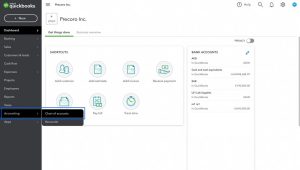
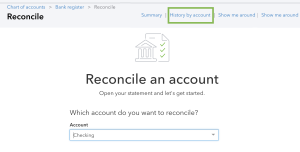
- Navigate to the Reconciliation Page: Go to the ‘Accounting’ menu and select ‘Reconcile’. This will take you to the reconciliation page where you can view past reconciliations.
Step 2: Select the Account
- Choose the Account: From the reconciliation page, select the account for which you want to undo the reconciliation. This could be a bank account, credit card account, or any other financial account you have reconciled.
Step 3: View Reconciliation History
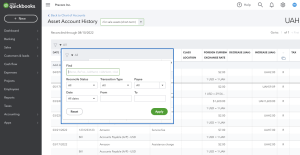
- Reconciliation History: Click on the ‘History by account’ tab to view the reconciliation history for the selected account. This will display a list of all previous reconciliations.
Step 4: Undo the Reconciliation
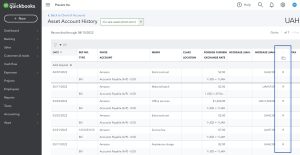
- Select the Reconciliation: Find the reconciliation you want to undo. Click on the drop-down arrow next to the reconciliation date and select ‘Undo’.
- Confirm the Action: QuickBooks Online will prompt you to confirm your action. Confirm that you want to undo the reconciliation.

Step 5: Review and Adjust Transactions
- Review Transactions: After undoing the reconciliation, review the transactions to ensure they are accurate. Make any necessary adjustments to correct errors.
- Re-reconcile if Needed: If you made adjustments, you might need to re-reconcile the account to ensure accuracy.
Tips for Effective Reconciliation in QuickBooks Online
To prevent the need to undo reconciliations frequently, consider these tips for effective reconciliation:
Maintain Accurate Records
- Update Transactions Regularly: Ensure all transactions are entered and categorized correctly.
- Match Transactions Promptly: Regularly match transactions to avoid discrepancies.
Review Reconciliation Reports
- Reconciliation Reports: Regularly review reconciliation reports to identify and correct discrepancies early.
- Audit Trail: Keep an audit trail of reconciliations to track changes and adjustments.
Use Automation Tools
- AI Bookkeeping: Leverage AI bookkeeping tools to automate and streamline the reconciliation process.
- Integration with Software: Integrate QuickBooks Online with other accounting software for seamless data synchronization.
Common Scenarios Requiring Reconciliation Adjustment
Certain business scenarios may require adjustments to reconciliations. Understanding these can help in proactively managing your financial records.
Sole Trader Bookkeeping
For sole traders, personal and business transactions may sometimes get mixed. It’s crucial to separate these and ensure only business transactions are reconciled.
Construction Bookkeeping
In construction bookkeeping, project-specific expenses and income must be accurately tracked and reconciled. Regular review of job costs and revenues is essential.
Restaurant Bookkeeping
Restaurants deal with daily cash transactions and various payment methods. Regular reconciliation of cash, credit, and bank transactions is necessary to maintain accurate records.
Truckers Bookkeeping Service
For truckers, fuel expenses, tolls, and freight income need to be accurately recorded and reconciled to ensure precise financial tracking.
Law Firm Bookkeeping
Law firms must reconcile client trust accounts separately from operating accounts to comply with regulatory requirements.
The Role of Professional Bookkeeping Services
While DIY reconciliation is possible, professional bookkeeping services offer expertise and efficiency, ensuring your financial records are accurate and compliant.
Benefits of Outsourced Bookkeeping Services
- Expertise: Professional bookkeepers have the expertise to manage complex reconciliations.
- Time-Saving: Outsourcing bookkeeping allows you to focus on your core business activities.
- Accuracy: Professional services ensure accuracy and compliance with accounting standards.
Common Problems and Issues When Undoing Reconciliation in QuickBooks Online
While the process of undoing reconciliation in QuickBooks Online is straightforward, users often encounter several common problems and issues. Understanding these can help in troubleshooting and ensuring a smoother reconciliation process.
Incorrect Transactions
One of the most common issues is incorrect transactions. These might include:
Incorrect Dates
Transactions may have the wrong dates, leading to mismatches between QuickBooks and bank statements.
Solution:
- Review the transaction dates and correct any errors before undoing the reconciliation.
- Ensure that all transactions fall within the reconciliation period.
Incorrect Amounts
Transactions recorded with incorrect amounts can cause discrepancies.
Solution:
- Verify the amounts against bank statements.
- Correct any incorrect amounts before attempting to undo the reconciliation.
Missing Transactions
Missing transactions can lead to an incomplete reconciliation process.
Solution:
- Check if any transactions are missing in QuickBooks Online compared to your bank statements.
- Enter any missing transactions before undoing the reconciliation.
Duplicate Transactions
Duplicate transactions are another common issue that can disrupt the reconciliation process.
Solution:
- Identify and remove any duplicate transactions in QuickBooks Online.
- Ensure that each transaction is unique and accurately recorded.
Incorrect Bank Statement
Using an incorrect or outdated bank statement for reconciliation can cause problems.
Solution:
- Always use the most recent and accurate bank statement for reconciliation.
- Double-check the statement period and ensure it matches the transactions in QuickBooks Online.

Unreconciled Transactions
Transactions that were not reconciled in previous periods can cause discrepancies in the current reconciliation.
Solution:
- Review past reconciliation reports and ensure all transactions are correctly reconciled.
- Address any unreconciled transactions before undoing the current reconciliation.
Adjustments and Journal Entries
Adjustments and journal entries made after reconciliation can affect the reconciliation process.
Solution:
- Review all adjustments and journal entries made after the last reconciliation.
- Ensure that these entries are accurate and correctly recorded.
Software Issues
Sometimes, software issues within QuickBooks Online can cause problems with reconciliation.
Solution:
- Ensure that you are using the latest version of QuickBooks Online.
- Clear your browser cache or try using a different browser if you encounter persistent issues.

Advanced Troubleshooting Tips
For more complex issues, consider the following advanced troubleshooting tips:
Reconciliation Discrepancy Report
Use the Reconciliation Discrepancy Report to identify any discrepancies in your reconciliation.
How to Access the Report:
- Go to the ‘Reports’ menu.
- Search for ‘Reconciliation Discrepancy Report’.
- Review the report to identify any discrepancies and take corrective action.
Verify and Rebuild Data
If you encounter persistent issues, verifying and rebuilding your QuickBooks Online data can help resolve underlying problems.
Steps to Verify and Rebuild Data:
- Go to the ‘File’ menu and select ‘Utilities’.
- Choose ‘Verify Data’ to check for any data issues.
- If issues are found, select ‘Rebuild Data’ to fix them.
Consult QuickBooks Support
For complex issues that cannot be resolved through basic troubleshooting, consider consulting QuickBooks Support.
Contact QuickBooks Support:
- Visit the QuickBooks support website for assistance.
- Reach out to their support team via phone or chat for expert help.
Seek Professional Help
If you are unable to resolve reconciliation issues on your own, seeking professional bookkeeping services can be a valuable solution.
Cashbook Consulting Services:
- Our team at Cashbook Consulting specializes in resolving complex bookkeeping and reconciliation issues.
- We offer expert assistance to ensure your financial records are accurate and compliant.
How Cashbook Consulting Can Assist
At Cashbook Consulting, we understand the complexities and challenges of bookkeeping. Our team of experts is here to help you navigate these challenges and ensure your financial records are accurate and up-to-date.
Comprehensive Bookkeeping Services
We offer a wide range of bookkeeping services to meet your business needs:
- Bookkeeping and Tax Services: From daily transaction recording to tax preparation, we provide comprehensive services to keep your finances in order.
- Bank Reconciliation: Regular reconciliation of bank and credit card transactions to ensure accuracy.
- Financial Statements: Preparation of detailed financial statements for informed decision-making.
- Payroll Services: Efficient payroll processing to ensure timely and accurate employee payments.
Industry-Specific Solutions
We provide tailored bookkeeping solutions for various industries, including:
- Construction Bookkeeping: Accurate tracking of project expenses and income.
- Restaurant Bookkeeping: Managing daily transactions and cash flow.
- Truckers Bookkeeping Service: Recording fuel expenses, tolls, and freight income.
- Law Firm Bookkeeping: Ensuring compliance with client trust fund regulations.
Advanced Technology
We leverage the latest technology, including AI bookkeeping, to provide efficient and accurate services. Our integration with QuickBooks Online and other accounting software ensures seamless data synchronization and real-time updates.
Affordable and Reliable
Our services are competitively priced, and we offer flexible packages to fit your budget. With Cashbook Consulting, you can rely on expert assistance and dedicated support to manage your bookkeeping needs.
Best Practices for Reconciliation in QuickBooks Online
Adhering to best practices can help ensure that your reconciliations are accurate and efficient.
Regular Reconciliation
Perform reconciliation regularly, ideally monthly, to keep your financial records up-to-date and to spot discrepancies early.
Maintain Accurate Records
Ensure that all financial transactions are recorded accurately and in a timely manner. This includes income, expenses, bank transactions, and credit card transactions.
Use Reconciliation Reports
After completing a reconciliation, always generate and review reconciliation reports. These reports provide a summary of the reconciled accounts and can help identify any lingering discrepancies.
Reconcile All Accounts
Don’t limit reconciliation to just your primary bank account. Ensure that all accounts, including savings accounts, credit cards, loans, and petty cash, are regularly reconciled.
Benefits of Proper Reconciliation
Proper reconciliation offers several benefits to your business, beyond just keeping accurate records.
Fraud Prevention
Regular reconciliation helps detect and prevent fraudulent activities. By comparing your financial records with bank statements, you can identify unauthorized transactions.
Cash Flow Management
Accurate reconciliation ensures that your financial records reflect your actual cash flow. This helps in making informed decisions about spending, investments, and savings.
Tax Preparation
Having reconciled accounts simplifies the tax preparation process. Accurate records make it easier to compile necessary documents and ensure compliance with tax regulations.
Financial Planning
Reconciliation provides a clear picture of your financial health, aiding in budgeting and financial planning. This helps in setting realistic financial goals and tracking progress.

Common Reconciliation Mistakes to Avoid
Avoiding common mistakes can make the reconciliation process smoother and more accurate.
Ignoring Small Discrepancies
Small discrepancies can add up over time and cause significant issues. Always investigate and resolve even minor discrepancies.
Not Saving Documentation
Always save all relevant documentation, such as bank statements and receipts, for future reference. This helps in verifying transactions during reconciliation.
Incorrect Categorization
Ensure that transactions are correctly categorized. Misclassified transactions can lead to inaccurate financial reports and complicate the reconciliation process.
Delaying Reconciliation
Procrastinating on reconciliation can lead to larger discrepancies and make the process more time-consuming. Stick to a regular reconciliation schedule.
How to Reconcile in QuickBooks Online: A Quick Overview
For those who are new to QuickBooks Online, here is a quick overview of the reconciliation process.
Step 1: Access the Reconcile Tool
Navigate to the ‘Accounting’ menu and select ‘Reconcile’. Choose the account you want to reconcile.
Step 2: Compare Statements
Compare the transactions in QuickBooks Online with your bank statement. Check for any discrepancies and ensure that all transactions match.
Step 3: Adjust Balances
If there are any discrepancies, adjust the balances accordingly. Enter any missing transactions or correct incorrect amounts.
Step 4: Complete Reconciliation
Once all transactions match, click ‘Finish Now’ to complete the reconciliation. Generate a reconciliation report for your records.
Using QuickBooks Online Support and Resources
QuickBooks Online offers extensive support and resources to help users with reconciliation.
QuickBooks Online Community
Join the QuickBooks Online Community to connect with other users, ask questions, and share experiences. This can provide valuable insights and tips for reconciliation.
Help Articles and Tutorials
QuickBooks Online offers a comprehensive library of help articles and tutorials. These resources provide step-by-step instructions and troubleshooting tips for reconciliation.
Professional Training
Consider enrolling in QuickBooks Online training courses or webinars. These can enhance your skills and help you navigate the reconciliation process more efficiently.
Case Studies: Successful Reconciliation Practices
Including case studies of businesses that have successfully implemented reconciliation practices can provide real-world examples and inspire confidence.
Case Study 1: Small Retail Business
A small retail business improved its cash flow management by implementing monthly reconciliation practices. This helped them identify unauthorized transactions and streamline their financial reporting.
Case Study 2: Construction Company
A construction company reduced errors in project accounting by regularly reconciling project-specific accounts. This provided accurate insights into project costs and revenues, aiding in better budgeting.
Case Study 3: Restaurant
A restaurant managed its daily transactions more effectively by reconciling cash sales and credit card payments daily. This minimized discrepancies and ensured accurate financial records.
For expert assistance with undoing reconciliation in QuickBooks Online and resolving any bookkeeping issues, contact Cashbook Consulting today. Our team of professionals is ready to help you streamline your financial processes and achieve your business goals.
Frequently Asked Questions (FAQs) about Undoing Reconciliation in QuickBooks Online
To further assist you in understanding how to undo reconciliation in QuickBooks Online, we’ve compiled a list of frequently asked questions and their answers.
What is the biggest advantage of electronic bookkeeping?
Electronic bookkeeping offers numerous advantages, but the biggest one is accuracy. Automated systems reduce the chances of human error, ensure real-time updates, and provide secure, accessible storage of financial data. This efficiency allows businesses to focus on growth and strategic planning instead of manual data entry.
How do I undo a reconciliation in QuickBooks Online?
To undo a reconciliation in QuickBooks Online:
- Navigate to the ‘Accounting’ menu and select ‘Reconcile’.
- Choose the account and click ‘History by account’.
- Find the reconciliation you want to undo, click the drop-down arrow, and select ‘Undo’.
- Confirm your action.
How to delete a reconciliation in QuickBooks Online?
Deleting a reconciliation in QuickBooks Online is similar to undoing it. Follow the steps to access the reconciliation history, and instead of selecting ‘Undo’, you will have the option to delete if needed. Note that deleting should be done cautiously as it removes the reconciliation data.
Can I undo reconciliation for multiple periods?
Yes, you can undo reconciliation for multiple periods, but you need to do it one period at a time. Begin with the most recent reconciliation and work your way backward. This ensures that any changes are accurately reflected in subsequent periods.
How does AI bookkeeping help in reconciliation?
AI bookkeeping automates the reconciliation process, reducing the time and effort required. It can automatically match transactions, identify discrepancies, and suggest corrections, making the process more efficient and accurate. This is particularly beneficial for businesses with high transaction volumes.
What if I find an error after undoing reconciliation?
If you find an error after undoing a reconciliation, you can correct the transaction and then re-reconcile the account. Ensure all changes are accurate before finalizing the reconciliation again to maintain the integrity of your financial records.
Industry-Specific Bookkeeping Needs
Different industries have unique bookkeeping requirements. Let’s explore how reconciliation and bookkeeping vary across various sectors.
Construction Bookkeeping
Construction companies deal with project-based accounting, where each project may have different costs and revenues. Regular reconciliation ensures accurate tracking of project expenses and income. This is crucial for budgeting, cost management, and financial reporting.
Restaurant Bookkeeping
In the restaurant industry, daily transactions include cash sales, credit card payments, and inventory purchases. Reconciliation helps track these transactions accurately, manage cash flow, and ensure compliance with tax regulations. It’s also vital for managing payroll and vendor payments.
Truckers Bookkeeping Service
Truckers and transportation companies often deal with expenses like fuel, tolls, maintenance, and freight income. Regular reconciliation ensures these expenses are accurately recorded and matched with income, providing a clear financial picture and aiding in tax preparation.
Law Firm Bookkeeping
Law firms must maintain separate accounts for client trust funds and operating expenses. Reconciliation ensures compliance with legal requirements and prevents commingling of funds. It also helps in tracking billable hours and client payments accurately.